How to Fix Stuttering in AAA Games: CPU, RAM, and Storage Checklist
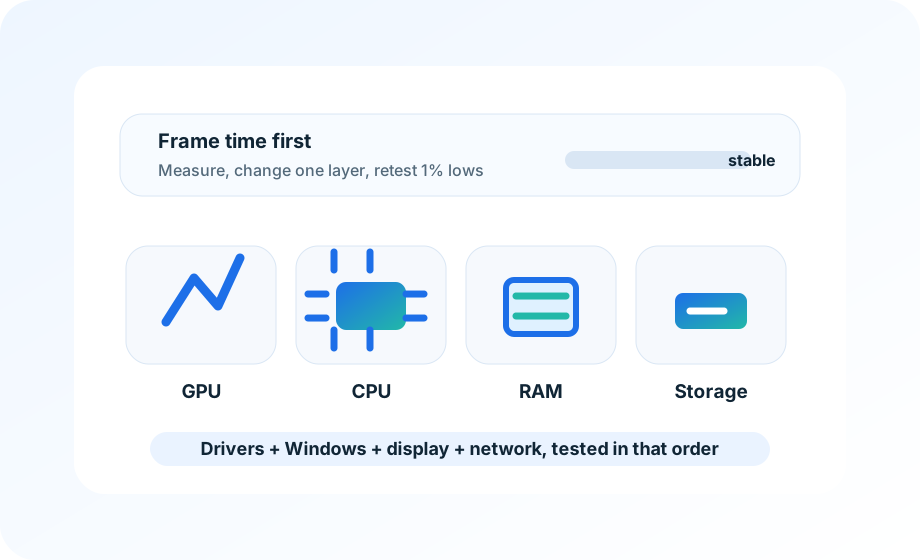
Stutter is not one problem. Separate shader compilation, CPU spikes, RAM pressure, storage streaming, and driver cleanup before buying parts or reinstalling Windows.
How this page was reviewed
Pages are reviewed around game version, driver version, 1 percent lows, shader behavior, and whether a tweak is reversible.
Reader problem
This page is kept narrow around how to fix stuttering in AAA games for readers who need a practical answer rather than a broad overview.
Decision boundary
The site does not promise universal FPS gains; it shows readers how to isolate likely bottlenecks and avoid risky changes.
Evidence checklist
The draft is checked for shader compilation, memory pressure, storage health, and driver cleanup before it is treated as ready for readers.
Refresh trigger
Driver, DLSS/FSR, shader-cache, and Windows game-setting pages get priority after major GPU or game updates.
Start by naming the stutter pattern. A single hitch when a new area loads is often shader compilation or asset streaming. A rhythmic spike every few seconds points more toward a background task, overlay, storage issue, thermal clock drop, or RAM pressure. Those two problems feel similar during play, but the fix order is different.
Use one demanding scene you can repeat. For an open-world game, run the same 60-second route with a turn, a sprint, and a quick camera pan. For a shooter, use a training range plus one live match segment. Record frame time, 1% low, CPU usage per core if available, RAM use, VRAM use, disk activity, and GPU clocks. The frame-time line tells you more than the average FPS.
Read the timing of the hitch
If the first run after a driver update stutters and the second run is cleaner, do not start replacing hardware. Many games rebuild shaders after patches, driver changes, or graphics preset changes. Let the game finish its shader step when it offers one, then test again before clearing caches or reinstalling anything.
If every run stutters at the same point in the route, watch storage and RAM. A nearly full SATA SSD, a game installed on a slow external drive, or 16 GB of RAM shared with browsers, launchers, overlays, and voice chat can create traversal hitches even when the GPU is strong enough.
- First-run hitch after update: suspect shader compilation.
- Same corner or doorway every run: suspect asset streaming or storage.
- Spike during explosions or crowds: suspect CPU thread load or effects settings.
- Spike after 45 to 90 minutes: suspect heat soak, memory leak, or VRAM pressure.
Check RAM and storage before reinstalling the game
On a 16 GB system, close the browser, capture tools, RGB control panels, and duplicate launchers for one test. If the stutter drops, the fix may be boring but real: fewer resident apps, more RAM, or a lighter capture setup. If the page file is active during the spike, note it. That is a stronger clue than a generic high-memory warning.
Storage matters most when the game streams large assets. Keep the game on an internal SSD with enough free space for patches and cache files. If the drive is close to full, clean space before moving settings around. If the stutter changes after moving the game from a hard drive or slow external SSD to NVMe, keep that result and stop chasing driver folklore.
Use graphics settings to reduce spikes, not just raise averages
Lower settings that hit sudden load: shadows, volumetrics, crowd density, ray tracing, texture streaming budget, and background recording. Do not lower every option at once. Drop one group, repeat the same route, and compare the frame-time graph. If average FPS climbs but spikes stay, the setting was not the real fix.
| Symptom | Likely layer | First test |
|---|---|---|
| Hitch when entering new areas | Storage or shader compilation | Repeat the route after cache warm-up |
| Stutter during explosions | CPU and effects load | Lower volumetrics, particles, crowd density |
| Worse after long sessions | Heat, VRAM, memory leak | Log clocks, temps, RAM, and VRAM over time |
| Only after driver update | Driver or shader cache | Run twice before rollback or cache cleanup |
Rollback path
Save the original graphics preset, driver version, and install drive before making changes. If a driver rollback is needed, use the official installer first. Use a full cleanup tool only when a normal rollback fails or the driver panel is clearly broken, because aggressive cleanup can erase useful profiles and make the next test harder to compare.
Stop when the spike is reduced in the repeated route and the game still looks acceptable. The goal is not a perfect graph. The goal is a stable session that does not push you into a needless GPU, RAM, or SSD purchase.
Capture the spike before changing settings
Use one repeatable scene and mark whether the hitch appears during traversal, shader compilation, autosave, asset streaming, or CPU-heavy combat. The first useful fix depends on that timing.
This note was added to make the recommendation easier to verify in a real setting, not just easier to scan. Readers should be able to repeat the check, keep the result, and avoid a purchase or setting change that does not solve the stated problem.
Site policies and support
If you need a correction, policy clarification, or privacy answer, use the contact and policy pages linked below. They remain accessible from every page on the site.