How to Reduce Input Lag on PC: Display, USB, and Network Tweaks
Input lag is a chain. Test display mode, frame cap, render queue, USB polling, overlays, and network route separately before blaming the mouse or buying a new monitor.
How this page was reviewed
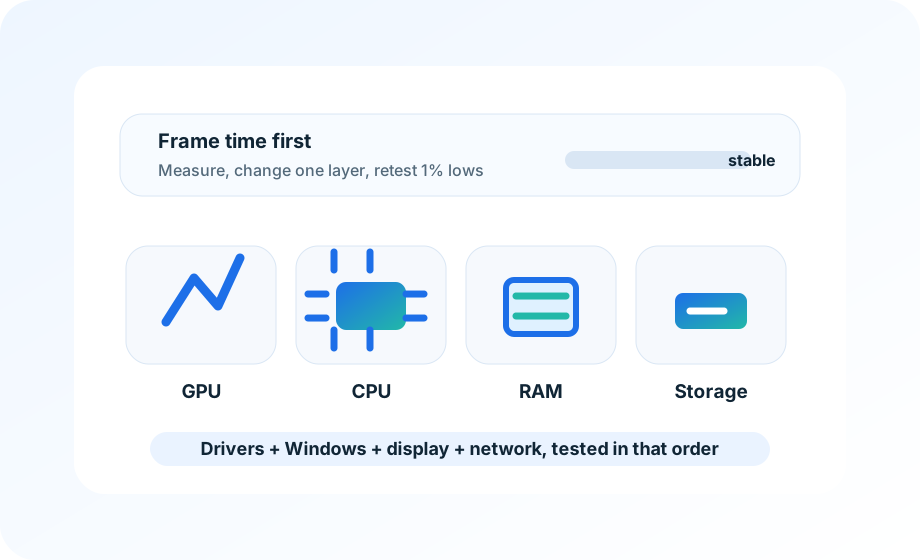
Pages are reviewed around game version, driver version, 1 percent lows, shader behavior, and whether a tweak is reversible.
Reader problem
This page is kept narrow around how to reduce input lag on PC for readers who need a practical answer rather than a broad overview.
Decision boundary
The site does not promise universal FPS gains; it shows readers how to isolate likely bottlenecks and avoid risky changes.
Evidence checklist
The draft is checked for display queue control, USB polling stability, router placement, and game server choice before it is treated as ready for readers.
Refresh trigger
Driver, DLSS/FSR, shader-cache, and Windows game-setting pages get priority after major GPU or game updates.
Do not treat input lag as one mystery setting. The delay can come from the game engine, render queue, GPU load, display sync, USB polling, overlays, wireless interference, router path, or the server you joined. Changing all of those at once makes the setup feel different, but it does not tell you what helped.
Use a simple test session: one aim trainer or training range, one live match, the same monitor refresh rate, and the same mouse DPI. Record frame rate stability, GPU usage, ping, packet loss, and whether the mouse feels heavy only during fights or also on the desktop.
Start with display and frame pacing
If the GPU is pinned at 99% in a shooter, mouse input often feels heavier even when average FPS looks high. Set a frame cap below the unstable peak and test again. On a 144 Hz display, try 141 FPS. On a 165 Hz display, try 158 FPS. Keep adaptive sync consistent while testing so V-Sync and caps do not fight each other.
Check exclusive fullscreen, borderless mode, HDR, overlays, and capture tools. Some games behave better in borderless now, but others still feel cleaner in exclusive fullscreen. The point is not to follow a universal rule. The point is to test one display path and keep the one with steadier frame pacing and better mouse feel.
Then check USB without buying anything
Plug the mouse directly into a rear motherboard USB port for one test. Remove unnecessary hubs, charging cables, and duplicate control software. If you use 4000 Hz or 8000 Hz polling, test 1000 Hz as a baseline. Very high polling can expose CPU or game-engine overhead on some systems, especially with overlays and capture running.
Wireless mice can be excellent, but the receiver location matters. Keep the dongle close, avoid plugging it behind a metal case under the desk, and test with the cable or extender that came with the mouse. If the issue disappears only when wired, you have a signal or battery path to investigate, not a graphics preset problem.
Network delay is different from local input lag
High ping, packet loss, and bad routing can make shots feel late, but they do not usually make the desktop cursor feel heavy. Separate the two. If the mouse feels normal offline and bad only on one server region, test another region, another time of day, and a wired Ethernet connection before changing USB or monitor settings.
| Symptom | Likely area | First useful check |
|---|---|---|
| Heavy mouse in every game | Frame pacing or USB | Cap FPS and test direct USB |
| Delay only online | Network route | Check ping, packet loss, region, Ethernet |
| Tearing or uneven motion | Display sync | Test one adaptive sync and V-Sync path |
| Delay with overlays active | Capture or monitoring stack | Close recording, browser, and hardware overlays |
Keep a rollback profile
Write down the original refresh rate, frame cap, sync setting, mouse polling rate, and driver latency option. If a new setup feels worse after two matches, restore those values instead of continuing to tune around a bad change. A clean rollback profile is boring, but it prevents the all-too-common spiral where every night starts with a different input stack.
Treat latency as a chain
Display mode, frame cap, render queue, USB polling, game settings, and network route can all add delay. Change one link at a time so the result is visible and reversible.
This note was added to make the recommendation easier to verify in a real setting, not just easier to scan. Readers should be able to repeat the check, keep the result, and avoid a purchase or setting change that does not solve the stated problem.
Site policies and support
If you need a correction, policy clarification, or privacy answer, use the contact and policy pages linked below. They remain accessible from every page on the site.