Best DLSS, FSR, and Frame Generation Settings Explained
DLSS, FSR, XeSS, and frame generation can help, but the right setting depends on motion clarity, base frame rate, HUD sharpness, Reflex or Anti-Lag support, and how much latency you can tolerate.
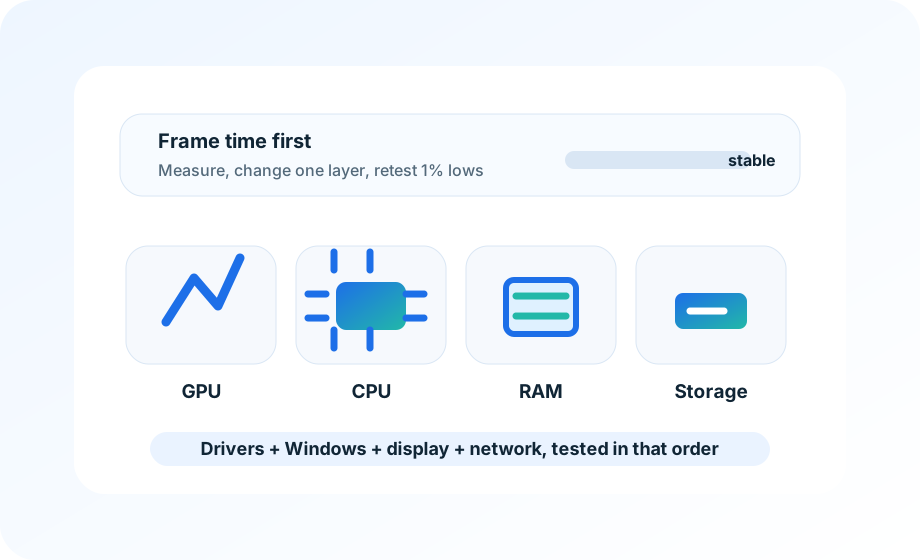
How this page was reviewed
Pages are reviewed around game version, driver version, 1 percent lows, shader behavior, and whether a tweak is reversible.
Reader problem
This page is kept narrow around best DLSS FSR frame generation settings for readers who need a practical answer rather than a broad overview.
Decision boundary
The site does not promise universal FPS gains; it shows readers how to isolate likely bottlenecks and avoid risky changes.
Evidence checklist
The draft is checked for quality mode selection, reflex pairing, UI sharpness, and artifact spotting before it is treated as ready for readers.
Refresh trigger
Driver, DLSS/FSR, shader-cache, and Windows game-setting pages get priority after major GPU or game updates.
Upscaling is not just a free FPS switch. It changes the image reconstruction path, sharpness, ghosting, UI stability, and sometimes input feel. Frame generation is even more conditional because it can make the counter look excellent while the game still responds like the lower base frame rate underneath.
Test with movement, not screenshots. Walk past fences, foliage, thin wires, nameplates, transparent effects, and small HUD text. Pan the camera quickly, then aim at a moving target. If the image smears or the input feels delayed, a higher FPS counter did not solve the problem.
Pick the mode by base frame rate
If the game already holds a stable 70 to 90 FPS before frame generation, DLSS or FSR Quality can be a good way to clean up 1% lows at 1440p or 4K. If the game sits around 35 to 45 FPS, frame generation may make motion look smoother, but input can still feel heavy. Competitive shooters usually need a stronger base frame rate than single-player games.
For 1080p, avoid jumping straight to Performance mode unless the game is unusually demanding. The internal resolution can get too soft, especially around foliage, chain-link fences, and distant player outlines. At 1440p, Quality and Balanced are the most useful first tests. At 4K, Performance can be acceptable in some games, but check HUD text and fine edges before keeping it.
Pair latency tools deliberately
With NVIDIA cards, Reflex should usually be tested alongside DLSS and frame generation when the game supports it. With AMD cards, Anti-Lag or Anti-Lag 2 support depends on the game and driver path. Do not stack every latency tool in the driver and the game at once. Pick the game-level option first, test, then add driver-level controls only if the game lacks a clean setting.
| Use case | Good first setting | Warning sign |
|---|---|---|
| Competitive 1080p | Native or Quality upscaling, no frame generation | Soft targets or delayed flicks |
| 1440p high refresh | Quality or Balanced plus Reflex or Anti-Lag | GPU pinned at 99% with heavy mouse feel |
| 4K single-player | Quality or Performance, frame generation if base FPS is stable | Ghosting around foliage or UI shimmer |
| CPU-limited game | Frame cap and CPU-side settings first | Upscaling raises FPS little or not at all |
Sharpening should be checked in motion
Too much sharpening can make a still image look crisp and a moving image look noisy. If the game has its own sharpening slider, start there before adding driver sharpening. In many games, a small amount is enough after DLSS or FSR Quality. If edges crawl during camera movement, lower sharpening even if the screenshot looks less impressive.
Watch the UI separately from the 3D scene. Some games keep HUD text native while others can make menus, markers, or nameplates look unstable. A setting that is fine for a controller-driven single-player game may be distracting in a mouse shooter.
When to turn frame generation off
Turn it off for competitive testing, aim training, rhythm-sensitive gameplay, or any match where input feel matters more than smooth animation. Also turn it off if the base frame rate is unstable. Frame generation can cover uneven animation, but it does not remove the underlying slow simulation or input delay.
Keep it for slower single-player games when base FPS is already steady, visual artifacts are low, and the control feel remains comfortable. Write down the base FPS and generated FPS separately. That one note prevents a lot of bad comparisons later.
Compare motion, not screenshots
Upscaling and frame generation should be checked while moving the camera through HUD text, foliage, shadows, and fast aim adjustments. Keep the option only if clarity and latency both stay acceptable.
This note was added to make the recommendation easier to verify in a real setting, not just easier to scan. Readers should be able to repeat the check, keep the result, and avoid a purchase or setting change that does not solve the stated problem.
Site policies and support
If you need a correction, policy clarification, or privacy answer, use the contact and policy pages linked below. They remain accessible from every page on the site.