Safe GPU Overclock Guide for 2026: More FPS Without Instability
A safe GPU overclock is the profile you can play on for hours without crashes, heat soak, fan noise misery, or worse frame-time spikes. Small, measured steps beat headline clocks.
How this page was reviewed
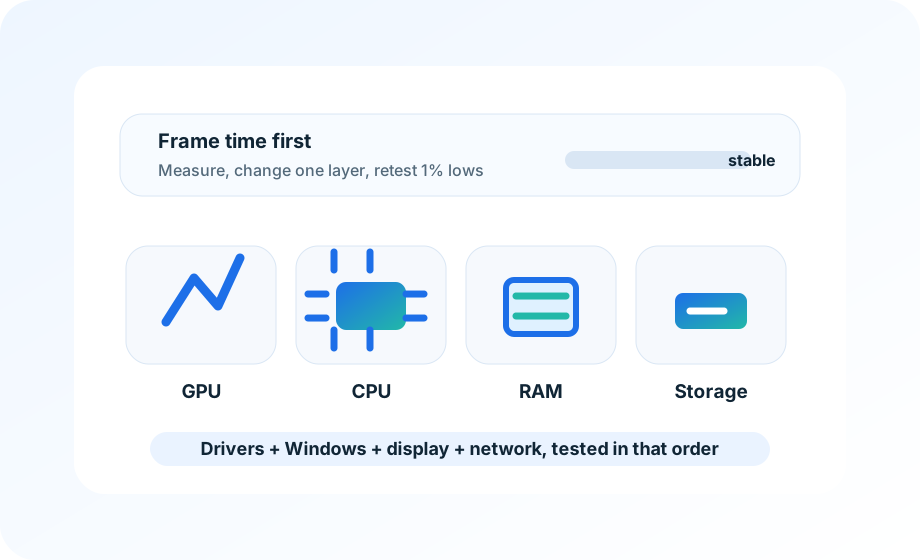
Pages are reviewed around game version, driver version, 1 percent lows, shader behavior, and whether a tweak is reversible.
Reader problem
This page is kept narrow around safe GPU overclock guide 2026 for readers who need a practical answer rather than a broad overview.
Decision boundary
The site does not promise universal FPS gains; it shows readers how to isolate likely bottlenecks and avoid risky changes.
Evidence checklist
The draft is checked for core clock stepping, memory tuning, stress testing, and thermal ceiling before it is treated as ready for readers.
Refresh trigger
Driver, DLSS/FSR, shader-cache, and Windows game-setting pages get priority after major GPU or game updates.
Overclocking should start with a stock baseline, not a target number from someone else's card. Two GPUs with the same name can behave differently because of cooler design, case airflow, power limit, silicon quality, driver version, and room temperature. A good daily profile is quiet enough to live with and stable after heat soak, not just stable for a short benchmark.
Record stock average FPS, 1% low, GPU temperature, hotspot temperature if available, fan speed, power draw, and clock behavior in one real game plus one stress test. If the stock profile already hits a thermal or power ceiling, fix airflow or dust first. An overclock cannot rescue a card that is already throttling.
Use small steps and keep memory separate
Increase core clock in small steps, test, then stop at the first sign of instability or worse frame pacing. After core testing, return to the last stable core value and test memory separately. Memory instability can show up as flicker, texture corruption, driver resets, or rare crashes long after a short test passes.
Do not raise voltage just to copy a number. Many modern GPUs are already managed aggressively by boost algorithms. A mild undervolt with a steady clock can sometimes deliver better frame consistency, lower noise, and similar FPS compared with a hotter overclock.
Test the way you actually play
A benchmark loop is useful, but it is not enough. Test the games you play, with the frame cap, upscaling mode, overlays, and background apps you normally use. A profile that survives a synthetic load and crashes when alt-tabbing, streaming, or loading a shader-heavy game is not stable.
| Signal | Keep tuning? | Reason |
|---|---|---|
| Average FPS up, 1% low down | No | The game got less consistent |
| Hotspot near limit | No | Heat soak may break long sessions |
| Fan noise unacceptable | No | A daily profile has to be livable |
| Small FPS gain, lower voltage, stable clocks | Maybe | Efficiency can be more useful than peak clocks |
Know when stock is the better answer
If the card is already power-limited, the case runs warm, or the game is CPU-limited, GPU overclocking may add almost nothing. In those cases, a frame cap, undervolt, fan curve, or graphics setting change can do more for real play than a higher core number.
Also skip overclocking while troubleshooting crashes. Return to stock first. If the problem disappears, your tuning profile was part of the issue. If the problem remains at stock, then investigate drivers, game files, memory stability, PSU behavior, or thermals.
Rollback path
Save the stock profile and one conservative daily profile. Label them clearly in the tuning tool. If a game crashes, the driver resets, or frame-time spikes get worse, restore stock before making any other changes. That one habit prevents you from blaming a game patch for an unstable overclock.
Stop at the stable daily profile
A useful overclock survives heat soak, long sessions, alt-tab behavior, and fan noise limits. Extra clocks are not worth keeping when frame-time consistency or temperatures get worse.
This note was added to make the recommendation easier to verify in a real setting, not just easier to scan. Readers should be able to repeat the check, keep the result, and avoid a purchase or setting change that does not solve the stated problem.
Site policies and support
If you need a correction, policy clarification, or privacy answer, use the contact and policy pages linked below. They remain accessible from every page on the site.